Review Patch Statistics
The Patch Statistics dashboard shows the deployment status of patches that are associated with managed devices. This information can help administrators to understand the level of patch compliance in their environment, and to look for any indicators that can improve the overall security of their environment. The dashboard displays a variety of statistical data to assist the administrator to easily identify the software patches that can be rolled out to specific devices.
You can access this dashboard from the following tabs in the Patching Library:
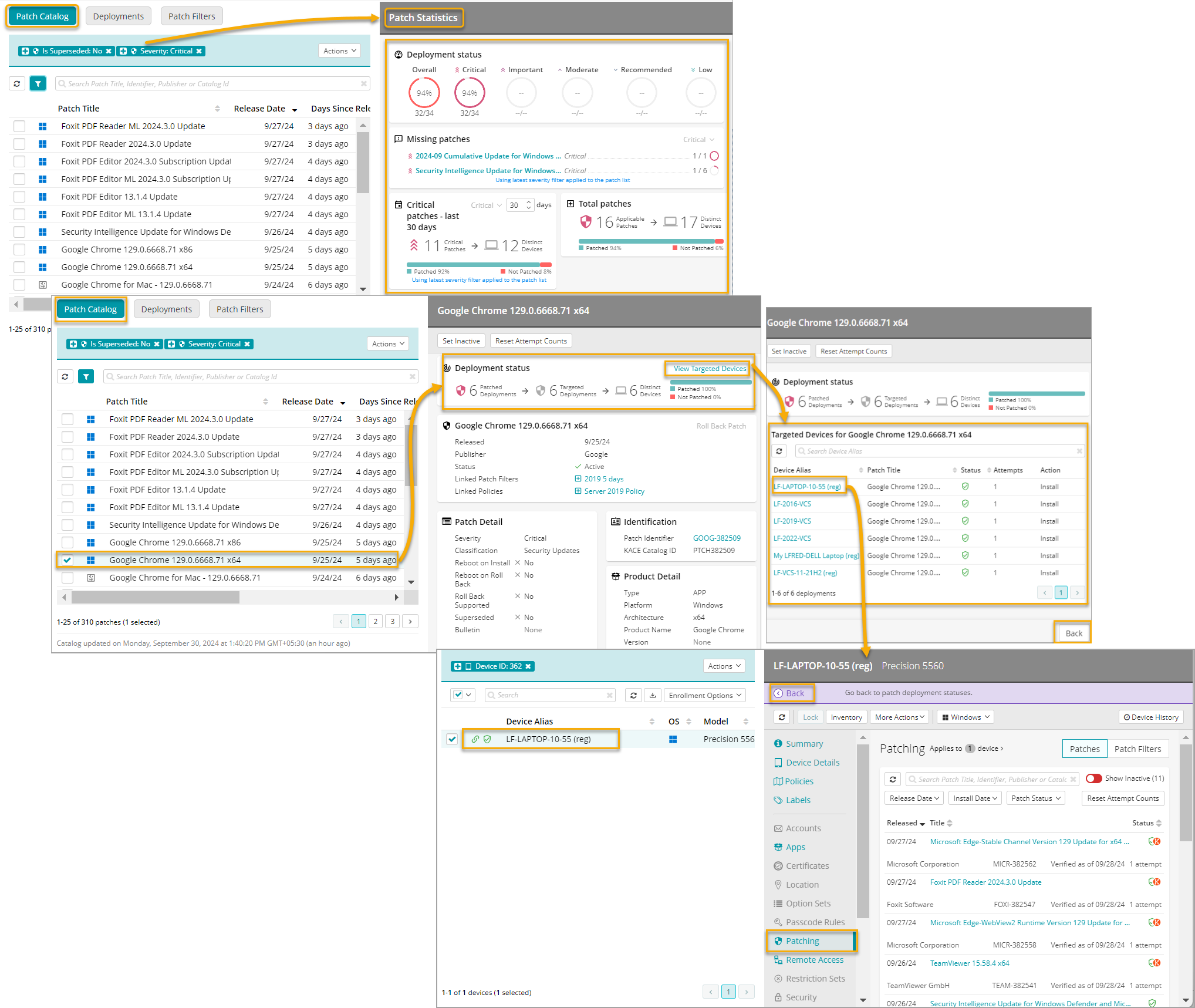
- Patch Catalog: When you navigate to the Patch Catalog tab, the Patch Statistics dashboard appears on the right, showing the deployment statistics for all available patches.
The dashboard includes the following views:
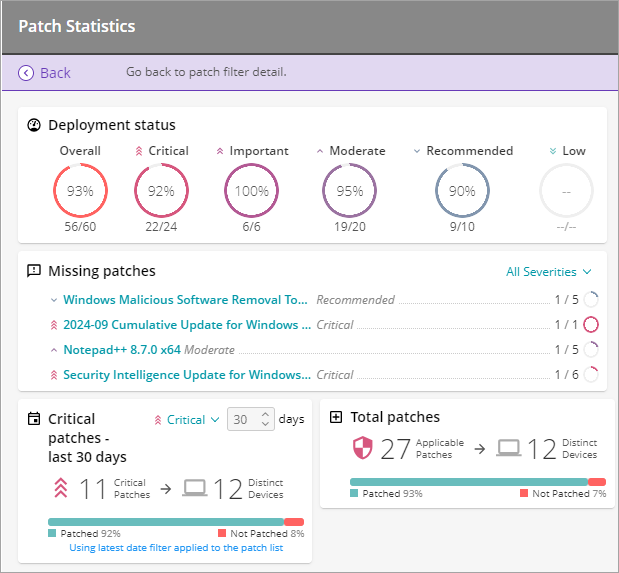
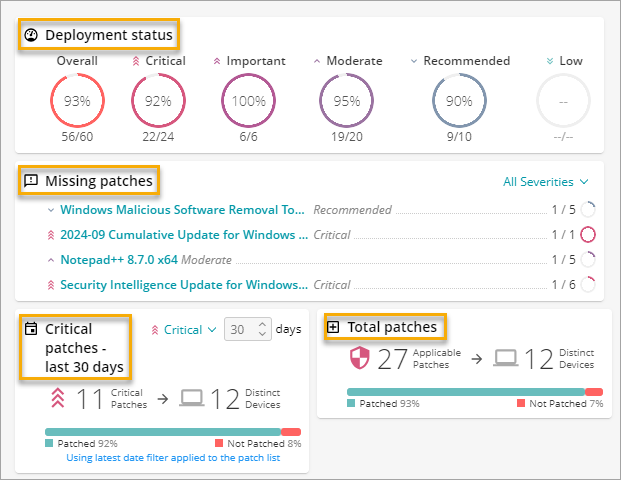
- Deployment status: Displays the percentage of deployed patches for all patches (Overall), and also for each patch severity: Critical, Important, Moderate, Recommended, and Low.
- Patches by severity: Shows the number of patches released for that severity in the selected time frame, the number of targeted devices, as well as the numbers of patched devices against the number of those that are not patched. For example, when you choose Critical patches and 30 days, the view shows the number of Critical patches released over the last 30 days, the number of devices on which Critical patches can be installed, and a ratio of patched devices against those that are not yet patched.
- Total patches: Shows the total number of applicable patches (each targeting one or more devices), and the number of devices those patches target.
- Missing patches: Lists the patches that failed to deploy to applicable managed devices or missing patches. You can filter the list to display the failed patches of a desired severity, as needed.
As you modify Patch Catalog filters on the left, the dashboard refreshes, showing only the data associated with the patches in the Patch Catalog. Selecting one or more patches shows the deployment status of the selected patches, along with other relevant information. You also have the option to view a list of the devices targeted by selected patches, and to drill down on a specific device which takes you to the device's Patching tab. You can easily return to the Patch Statistics dashboard using the provided navigation flow.
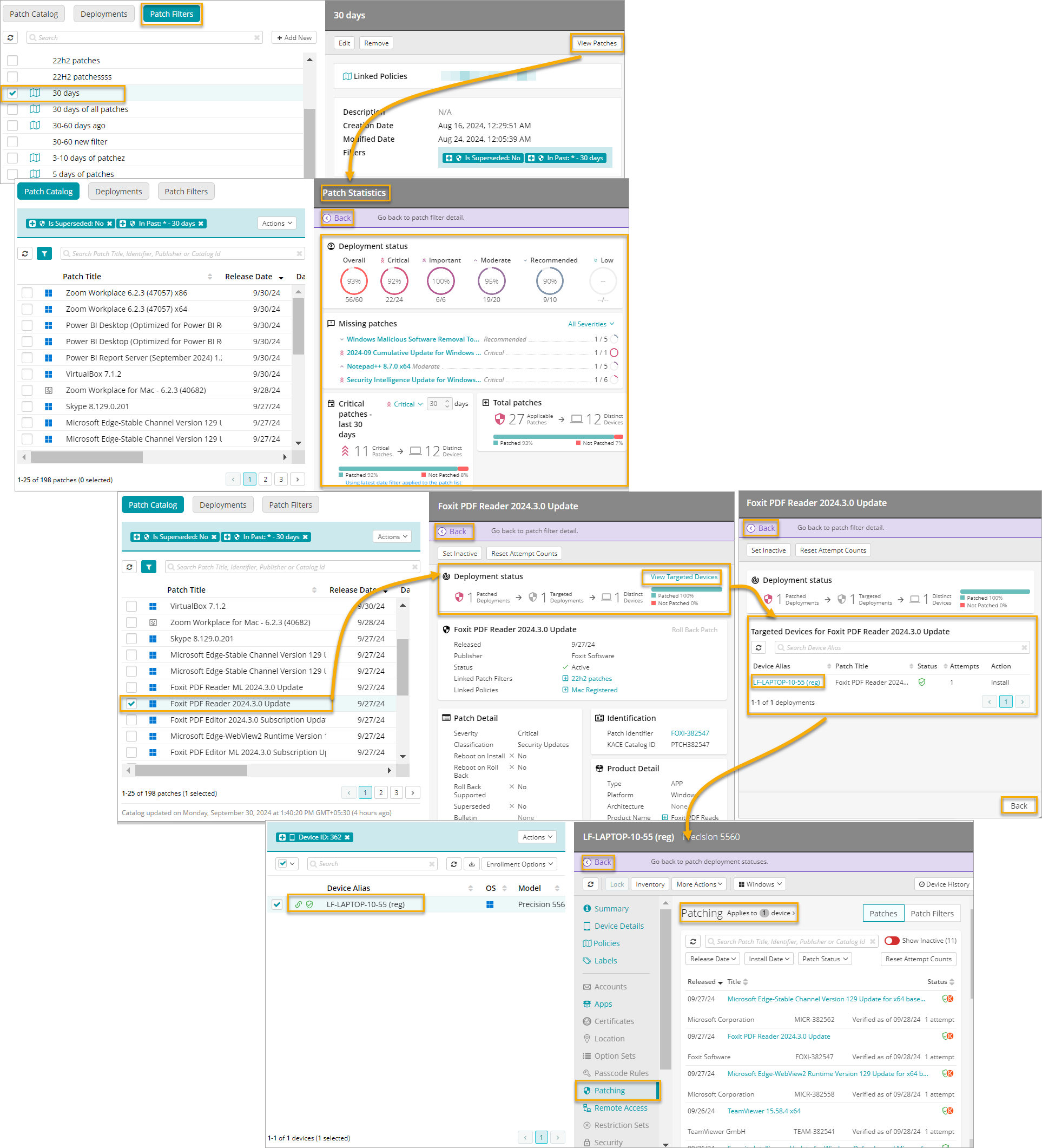
- Patch Filters: When you open the Patch Filters tab and select a specific patch filter, you can click View Patches and review the contents of the Patch Statistics dashboard on the right. The dashboard shows the deployment statistics for all patches associated with the selected Patch Filter. It contains a set of interactive views that you can use to display various sets of data based on the patch severity or the length of time during which the patches are installed. You can also select one or more patches in the Patch Filter to display the patch deployment status associated with your selection, and other patch-related information. From here, you also have an option to view targeted devices and drill down on a desired device. You can always return to the Patch Filter details using the navigation flow.
To access the Patch Statistics dashboard:
- Select the Libraries tab in top navigation.
- Click the Patching icon.
- In the Patching Library that appears, complete one of the following steps:
- To view patch statistics for all available patches, open the Patch Catalog tab. Alternatively, apply one or more Patch Catalog filters on the left, to focus on specific patches, as needed.
- To view patch statistics for a specific Patch Filter, open the Patch Filters tab. Then, select the Patch Filter in the list, and click View Patches on the right.
The Patch Statistics dashboard appears on the right.
- Review the contents of the dashboard and use the available settings to adjust the contents of the dashboard, as applicable.
- To view the patching statistics associated with certain types of patches, apply an applicable patching filter and review the contents of the view.
For more information about patching filters, see Create and edit Patch Filters.